
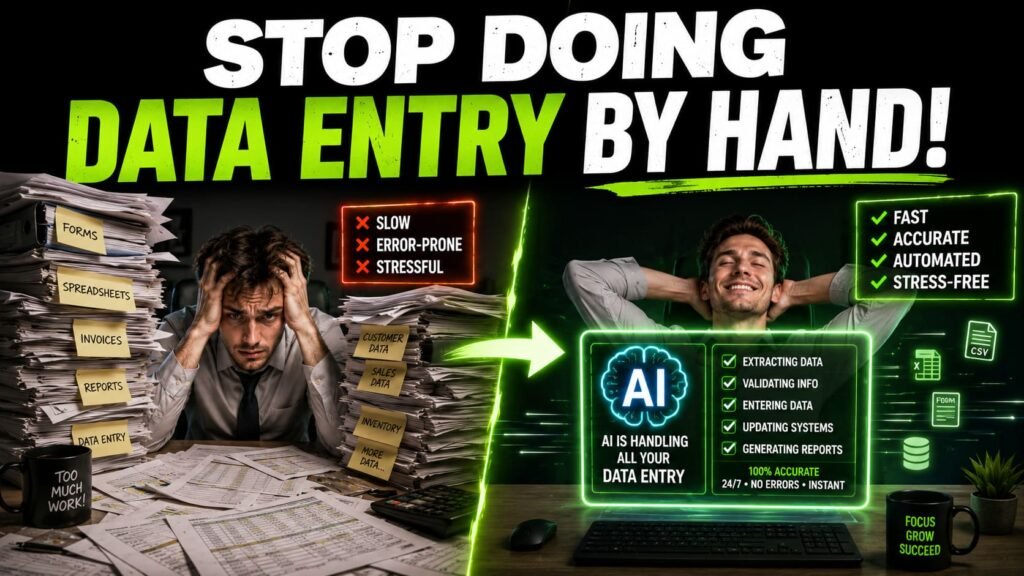
- The average employee spends around 8 hours a week on manual data entry. That’s a full workday, every week, just typing things from one place into another.
- AI-powered OCR is different from basic OCR. Basic OCR reads text. AI extraction understands which text is the vendor name, the total, the date, and puts it in the right field.
- Modern AI extraction tools hit 99%+ accuracy on printed text and don’t need per-document templates, which is the part that used to make automation more work than it saved.
- Teams switching to AI data entry report replacing 85 to 95 percent of manual keying time, with error rates dropping close to zero on standard formats.
- The honest threshold: if you’re processing more than a few dozen documents a week, the setup pays for itself. Below that, manual entry is often still fine.
Eight hours a week. That’s roughly what the average employee spends on manual data entry, typing numbers from invoices into spreadsheets, copying details from forms into a CRM, retyping the same fields over and over from documents that already contain the information in plain sight. It’s not a skill problem. It’s not even really a productivity problem in the usual sense. It’s just work that exists because, until recently, there wasn’t a reliable alternative.
There is now, and it’s gotten genuinely good. Not “good for a computer” good. Actually reliable enough that teams are handing over real invoice processing, form handling, and document workflows to it and not looking back. Here’s what’s changed, what it actually looks like in practice, and where you still need a person checking the work.
Why this is different from the OCR you remember
If your last experience with OCR was scanning a document and getting back a wall of text with random line breaks and a few garbled words, that’s basic OCR, and it’s not what’s being talked about here. Basic OCR reads characters. It doesn’t know that the number next to “Total” is an amount you need, or that the text under “Bill To” is a company name that goes in a specific field.
AI-powered data extraction does both. It reads the text and understands the structure around it, the layout, the labels, the context, well enough to identify which piece of information is which and place it directly into the right column of a spreadsheet or the right field in your accounting software. The difference between “here’s all the text on this page” and “here’s the vendor, invoice number, date, and total, ready to import” is the difference between a tool you still have to clean up after and one that actually finishes the job.
The other thing that’s changed is templates. Older document automation tools required you to set up a template for each document format, drawing boxes around where the invoice number sits on this specific vendor’s invoice, then doing it again for the next vendor’s completely different layout. For teams receiving documents from dozens of different sources, maintaining those templates became its own job. AI-powered tools are layout-agnostic. They identify fields by understanding what they are, not by where they sit on a specific template, so a new vendor’s invoice in a format the system has never seen still gets processed correctly.
Modern AI OCR hits 99%+ accuracy on printed text in standard formats. That number drops for handwritten text, low-quality scans, and documents in mixed languages or non-Latin scripts. If most of what you’re processing is printed invoices, receipts, and forms, expect this to work close to flawlessly. If you’re dealing with handwritten notes or badly scanned faxes, build in a review step for those specifically.
What this actually looks like set up
The basic workflow is the same regardless of which tool you pick. Documents come in, an invoice attached to an email, a form submitted online, a receipt photographed on a phone, and they get routed to the extraction tool automatically. The tool reads the document, identifies the fields you’ve told it matter (vendor name, amount, date, line items, whatever your use case needs), and outputs structured data: a row in a spreadsheet, a record in a database, an entry in your accounting software.
Setting up what fields to extract is mostly plain English now. Tools like Lido let you define custom extraction fields by describing what you want, “the total amount due” or “the customer’s shipping address”, rather than configuring technical extraction rules. For anything not covered by a tool’s default fields, this is usually a five-minute setup, not a developer task.
Batch processing is where the time savings become obvious at scale. Instead of processing one document at a time, you can drop in a folder of hundreds of invoices and have them all extracted and structured within minutes. For a team that used to spend a full day at the start of each month processing the prior month’s invoices, that’s a day back, every month, without anyone needing to type a single number.
Manual entry vs AI extraction, same 50 invoices
| Step | Manual entry | AI extraction |
|---|---|---|
| Reading each document | ~2 to 3 min each | Automatic, batched |
| Typing fields into system | ~2 min each | Structured output, no typing |
| Total time for 50 documents | ~3.5 to 4 hours | ~10 to 15 minutes |
| Error rate | Typing errors common at volume | Near zero on standard formats |
Times are estimates for standard printed invoices. Handwritten or low-quality documents take longer either way.
Where this is being used right now
Accounts payable is the most common starting point, and for good reason. Invoices arrive constantly, they’re mostly standardized, and the fields you need (vendor, amount, due date, line items) are predictable even when the layout varies. This is also the use case with the clearest ROI, since the cost of an occasional missed invoice or duplicate payment is real money, and AI extraction reduces both.
Forms processing is the other big one. Whether it’s intake forms, applications, surveys, or order forms, anything where someone fills out a structured document and that information needs to land in a database gets faster and more accurate when AI handles the transcription. Healthcare practices, schools, and any business processing applications or registrations are common users here, often combined with document digitization for records that used to live entirely on paper.
Receipts and expense processing is a smaller-scale but very common case. Someone photographs a receipt on their phone, AI extracts the merchant, amount, date, and category, and it flows directly into an expense report without anyone manually entering line items. For accounting and bookkeeping workflows more broadly, this kind of automation is one of several places where AI is changing how the work actually gets done, covered in more depth in AI tools for accountants.
When manual entry is still fine
This isn’t a “replace all data entry immediately” pitch. For very low volumes, a handful of invoices a month, occasional one-off forms, the setup time for AI extraction can take longer than just typing the data yourself would, at least until volume picks up. The honest threshold is somewhere around a few dozen documents a week. Below that, manual entry is often fine, and adding a tool just adds something else to maintain.
Above that threshold, the math flips quickly. Even at 99% accuracy, the time saved per document adds up fast once you’re processing dozens or hundreds per week, and the error reduction compounds too. A 1% error rate across 5 documents a week is almost never a problem. A 1% error rate across 500 documents a week is 5 mistakes a week that someone eventually has to find and fix, usually after they’ve already caused a problem downstream.
Is AI data entry worth setting up?
| Volume per week | Recommendation | Why |
|---|---|---|
| Under 10 documents | Manual is fine | Setup time exceeds time saved at this volume |
| 10 to 50 documents | Worth trying | Setup pays off within a few weeks of use |
| 50+ documents | Clear win | Time savings and error reduction compound significantly |
Common misconceptions
“AI data entry means zero human involvement.” Most teams keep a light review step, especially early on, spot-checking a sample of extracted records against the source documents. Once you’ve confirmed accuracy on your specific document types, the review can shrink to exceptions only, documents the system flags as low-confidence rather than every single one.
“This only works for invoices.” Invoices are the most common starting point because the ROI is obvious and immediate, but the same extraction approach works for forms, receipts, contracts, applications, and any structured document where information needs to land in a system. If a human is currently reading a document and typing what they see into another tool, this generally applies.
“I need to set up a template for every document type.” That was true for older OCR tools and is the main reason a lot of businesses tried document automation years ago and gave up. AI-powered tools identify fields by what they are, not by their position on a specific layout, so new formats from new senders work without extra setup.
“Handwriting makes this impossible.” It makes it less reliable, not impossible. Accuracy on handwritten text is meaningfully lower than on printed text, and for documents that are mostly handwritten, a review step makes more sense than full automation. But mixed documents, a printed form with a handwritten signature or a few handwritten notes, still extract the printed fields accurately, with the handwritten portions flagged for review.
Getting started
Pick the document type that takes up the most manual time right now, for most people that’s invoices, and run a batch of recent ones through an AI extraction tool’s free trial or free tier. Most tools let you test this without committing to anything. Compare the extracted output against what you’d have typed manually. If the accuracy looks right on your actual documents, not just the demo examples, that’s the signal to set it up properly.
This is one of the more straightforward automations to start with precisely because the before-and-after is so visible. You’re either typing the data or you’re not, and once you’ve seen a batch of documents process themselves correctly, going back to typing feels like a step backward. For how this fits alongside other AI automations worth setting up, the AI workflow automation use cases guide covers nine other patterns beyond document processing, several of which connect directly to the data this kind of extraction produces.